Showing posts with label Dropbox. Show all posts

Thursday, 17 January 2013

My most used Apps

Here are several apps I use day to day on my Cr-48 Chromebook, more than any others. I haven't included the Chrome browser here as it is the basis for most of these apps anyway, and since it works the same as on Mac or PC and most people are using it anyway, it won’t be anything new to anyone.


Google Docs


Docs is Google's word processor app and is the best place for on and offline writing built into the Chrome OS platform and also available to anyone else on the web. It allows for a wide array of functions and control over your text and the embedding of many kinds of media in the documents. It also allows simultaneous collaboration on the document which makes it great for academia - I used it on my IT course for late night online brainstorming revision sessions.

Google Docs uses its own file type which means that to edit documents away from the Chromebook I have to use the Google Docs online website in the browser, or in the Drive app on mobile devices. I would much prefer if these Drive apps were taken over to OS X or Windows as well, but that would probably be quite an undertaking, although I have seen a few possible workarounds, at least on OS X. I find it simpler to just open a text editor on that platform and save it to Dropbox or in the Drive folder and work on it later instead.

Docs is nowhere near as feature-filled as Microsoft's Word, but it works great for me as I can just concentrate on the words I'm typing. There are some minor annoyances I have with it, like being unable to insert pictures from the downloads folder on the Chromebook, instead requiring them to be uploaded to Drive, or the lack of spell-check when offline, but I find it more than sufficient for my uses.

Blogger


This is really just a link to the Blogger website and has no offline capabilities whatsoever, but I only use the site when I’m on the Chromebook, so I felt it worth mentioning. This and Docs work fairly well together, and it even appears that the Blogger site is based off Google Docs itself.

I currently create posts in Docs and then copy the text over to Blogger to post on this blog. I find it work pretty well bar a few annoyances, for example, copying a post with photos already embedded in the document doesn’t always work, nor does it copy over some formatting. This has just taught me to do all of the final work to the posts in Blogger and just concentrate solely on the text while in Docs. I find it works pretty well!

Type Fu


As someone who never formally learned to type, my method has been idiosyncratic at best, and slow at worst. I have spent the last few months trying to relearn how to type properly. While there are some very good interactive websites on the subject, this is an app that also has a full-featured offline mode, that makes it king for me!

Achshar Player


While Google have their Play music app where you can store and buy music to listen back to whenever you are online, or a very basic media player built into the Chrome OS, the first only works when online, and the second only plays single songs at a time.

This is the best of the offline music players I have found so far. It allows the user to add albums and create playlists from music in their file hierarchy. It isn’t as pretty or as feature-rich as iTunes, Winamp, Windows Media Player or Zune but when I don't have my iPhone or iPod with me, it's a great little stop-gap!

Sourcekit


This app has access to my Dropbox files and can open all of the .txt files I have stored there. This makes it easy to see and edit my To Do Lists and other files I have there. The app is fairly basic and far simpler than GDocs, with no auto-save or offline usage, but it does allow for tabbed files open at once, which I find very convenient.

I have found that I use it less and less now I have swapped back to using an iPhone rather than a Windows Phone, as there are some great apps for Dropbox text editing available there. That is probably a post in itself!

TweetDeck


This is a Chrome Twitter app that is actually awesome, especially for free! I love that I can have several different columns which I can fill with whatever content I want and order how I like. It lets me see a great deal of information all at once, and I often have it open when I’m not working to just get the updates to my feed.

Chrome Remote Desktop


This app made it very easy to access my iMac while I was away from my flat. It allowed me to control the computer from the Chromebook, and allowed me to use my Mac apps to do things that I simply couldn’t do on my Chromebook. It also meant I could copy things into my Dropbox folder and access them on the web in a matter of seconds or minutes. Not bad at all!

Overall I have found these apps to be the ones I use the most. While I have everything in a Dropbox-orientated environment, the Chromebook is not really able to truly “shine” as a 100% integrated part of my workflow. At the same time I find the separation of my Chrome stuff and my Dropbox stuff usually works quite well, so perhaps I shouldn’t complain too much!

Tuesday, 8 January 2013

Offline Mode

After a gap for a busy week or so, this is another section of my Chrome OS and Chromebook series, this time detailing the how my usage of the Cr-48 works away from internet connectivity.

“Chromebooks are only good online”. This is something that I hear whenever anyone talk about the Chromebook and Chrome OS in general. Although WIFI is becoming increasingly available whether at school, work or anywhere else, there are still times when any computer user is going to be away from the internet. All devices should be able to work offline by default. From my usage, by and large, the Chromebook was a good device, but there are a few things I think need improving.

No File Hierarchy


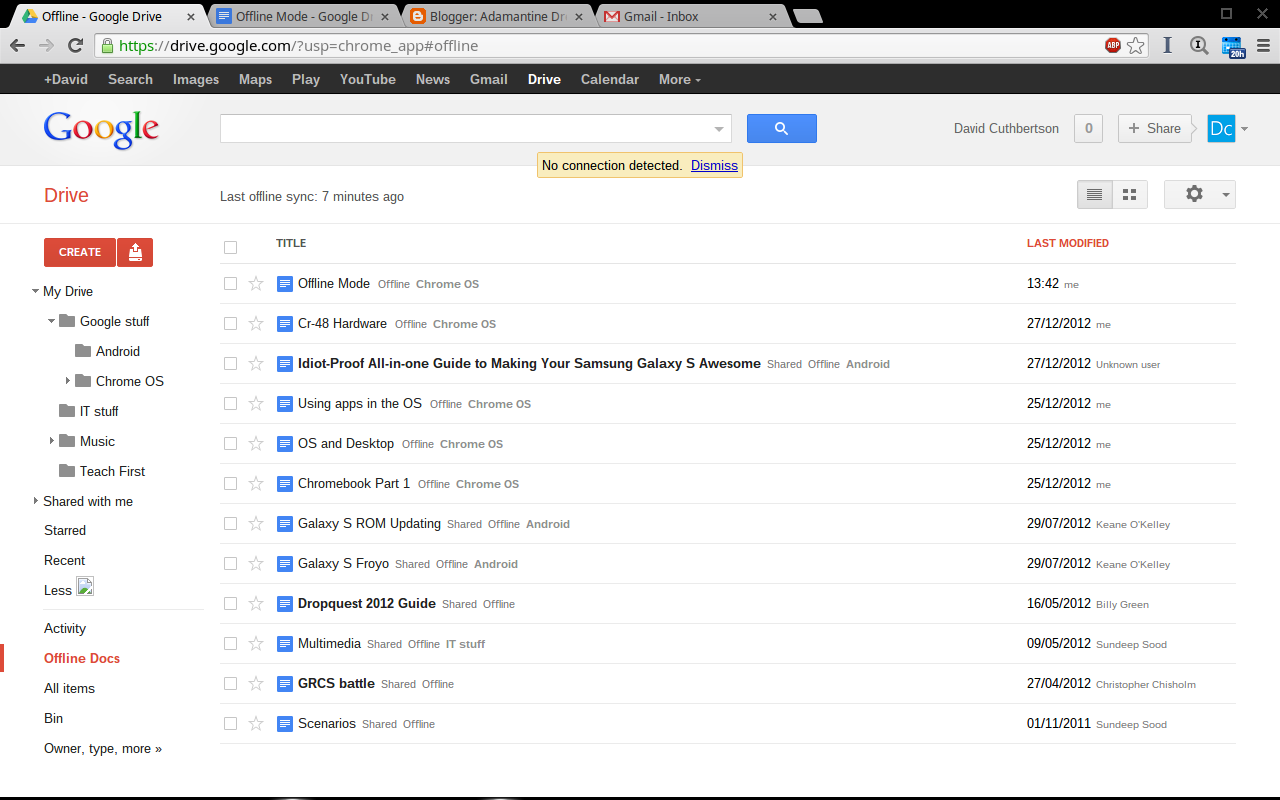
Although Google Drive has a hierarchy of files and folders when online, just like any other computer while, offline, there is no hierarchy, simply a long list of different files, rather than in their correct folders as they would appear online.

While I can understand that this is a simpler system, it becomes a little unwieldy as you have more and more documents. It is especially strang as the hierarchy is shown on the left of the webpage, as you can see below. As a Dropbox user, I am used to having every single file saved for offline use. This is a trade-off I would prefer not to make, but with only a 16GB SSD compared to other machines’ huge HDDs, I can understand why this decision has been made.


My Drive Offline Docs, in a list by "last modified"

Few apps with a decent offline mode

This is a small problem that require a certain amount of understanding. Windows, OS X and Linux programs generally all work online or offline. except perhaps internet browsers. Yet since Chrome OS is based on the browser, the vast majority of apps expect to have an internet connection, unless they have specific settings. Of the apps I have installed on the computer, about half work offline, while the others don’t run at all. Although this is initially jarring, once you understand which apps have an offline mode, you will be able to get by.

My biggest annoyance is the gap in functionality between their online and offline modes. This can be seen most obviously in the Gmail offline app when it is compared to the Gmail app. The offline app is much more like a smartphone or tablet app, whereas the the standard Gmail app is far more fully-featured and is exactly what a user would expected from a desktop operating system. This is especially disappointing as it is one of Google’s tent-pole services, something a user would expect to use day to day.


Offline Gmail and its tablet-like appearance and reduced features


It seems like the Chrome OS developers could do a bit more work to improve the app’s offline usability, rather than just give an excuse that perpetuates the idea that “Chromebooks are only good online”.

The same can be said about the lack of an offline spell-check in Google Docs. I have been used to corrections or suggestions on whatever platform I am on, including iOS devices whether online or offline. Google does not provide the spell-check offline. 
Strangely enough, I have found the Blogger website actually has a better spell-check than Google Docs, very odd!I imagine this is to reduce bloat on the tiny SSD, but the option to save at least one language of data would be nice. It is not a deal-breaker for me, as I am usually just writing notes on the Chromebook anyway prior to a final read through on my iMac, or at least in my flat when I will have access to the internet, but it still something different to the norm, that I need to remember. It does also mean that I am now forced to reread what I have typed, and it has actually made me edit what I have written previously. Perhaps that increase in self-editing is a good thing?

Usage

Having said all of this, in my usage, the Chromebook still did everything I needed it to do, even if it did not do everything I perhaps would have wanted it to do, making it a very good travel companion.

It was ready to go in seconds, due to its quick boot time and would play the small amount of music I had saved for offline use, or I could listen to the music on my phone. It also played a couple of episodes of a TV series I had on an SD Card, absolutely fine. I was easily able to transcribe handwritten notes in Google Docs and didn’t really need anything fancy. The Cr-48 is still a little too large for an aircraft’s tray table, but until I get my dream machine - an 11” MacBook Air, that would be the case with any other laptop I have.

Monday, 24 December 2012

The OS and the Desktop

Here is my second post in a series about using ChromeOS and the Cr-48 Chromebook and to see whether they can replace a Windows or OS X laptop.

Chrome OS


Chrome OS is Google's attempt at a fast, lightweight, desktop operating system based around their own Chrome browser. It was started by an engineer in Google who wanted to created an OS that was run entirely from the computer’s RAM. It is meant to boot fast, turn off quickly, and require less processing and battery power than a traditional desktop operating system. It allows for "apps" and "extensions" to be installed into the browser and to be used just like an app on any other operating system. However these applications are "web apps" which often appear to the user to be links to a website which provides the app's content or service.

An example of content would be the Google Drive, similar to the Dropbox and Skydrive services, it allows access to the user’s files and folders from Google’s own cloud storage from anywhere with internet access. To the Chrome OS user, it looks just like logging onto the website and going through its online file hierarchy just as it would a user logging in on their own browser, however it also allows for both ‘local’ access - where the files are downloaded to the device and ‘offline’ access, where files are saved locally and can be edited without an internet connection. Changes can then be synced back to the cloud the next time the Chromebook is connected to the internet. As someone who has used Dropbox for years, and use it as “My Documents” folder, this is something I have been doing for a long time, but it will be interesting to try to integrate this new OS into my computing work flow, after using Windows 7 and the different betas of Windows 8 on a laptop for the past year or so.


Desktop


From first impressions the OS is very pretty. Google has included a good number of beautiful wallpapers and of course you can use your own. I've stuck with one of the picturesque landscape ones, but your mileage may vary! For the version I am using, the desktop appears to be a pared down version of the Windows desktop, with the dock/ tool bar at the bottom and a small list of settings in the bottom corner including a clock, WIFI connection indicator and battery capacity indicator.


Also, just like Windows, you can get rid of the dock if you don’t want it to display unless you need it or to gain extra screen real estate for everything else. You just move your cursor down to the bottom of the screen and it will pop up.


Just like other OS with a window interface Chrome OS has the icons, this time with the icons on the right-hand side like Windows. It has the typical close window cross as well as a square icon which when you hover over it gives you several different options, to maximise, minimise and pin to the left and right. These icons can be clicked or the cursor dragged and clicked to them. I like these options being available, and it does give a good differentiation between Chrome OS, Windows and OS X.


Apps are accessible from a small icon that when pressed reveals a popup that shows a list of apps that are installed on the Chromebook. Each can then be right-clicked to give options as to how it opens and dragged to the dock just like on a Mac or PC.


Sadly these app icons appear in the order they have been installed on the device. There is no way to drag them to the pages you want like the functionality of OS X’s Launchpad app or the folders on iOS and Android. This disappoints me slightly, but I have just put my most-used apps in the dock and access them from there. I can also use the keyboard and press the “Search” button which has replaced the Caps lock key and type in the name of the app I want to open. The desktop works well enough for me, and other than that minor problem with the apps drawer, I like it.

Saturday, 8 September 2012

Lubuntu 12.04 on the M11X R3


Since I had a bit of time after my final degree hand-in, I am finally able to get a few different hobbies back on the go. Since I was able to uninstall all the software I needed for my project, I had a clean slate to test the Operating Systems on my laptop that I have had on the back burner for a while. The first is Lubuntu 12.04.

Introduction


Since I used Lubuntu to bring my 12 year old Vaio Z600 back to life last year, that laptop has only seriously been used once. That was the week I locked myself out of my flat. Using that machine really tested the lower bounds of the OS's compatibility. With so little processing power and an anaemic amount of RAM, the laptop performed surprisingly well. I wanted to see what Lubuntu could do on my M11X R3, a completely different beast. So over the period of a week I wanted to see whether it could be used as direct replacement for the Windows 8 Release Preview install I had just deleted.

Caveats


Windows Phone

There are several things I knew would not work before I had even started. The first is the syncing software for my Windows Phone, based are Microsoft's Zune music player. Unless I was to set up a virtual machine running Windows simply to run Zune, I have been unable to find any software that would be able to replace it. While there is software that I could use with my iMac instead, it is not as full-featured.

For this week I have simply deleted the software and will use the phone as-is, hardly a hardship. However I would not be able to receive any OS-updates without connecting to the software, so using Linux would not be a viable option with my choice of phone.

iMac

As mentioned above, I have an iMac which I use as my desktop computer, TV and general syncing machine for most of my tech things. This means that the number of things I need my laptop to do is a lot smaller than if it were my only machine. This means that the pressures put on Lubuntu are going to be lower than many others may need. It is my portable work machine and goes with me when I need to work anywhere away from the flat. But it doesn't need to sync my iPad/iPod, backup any of my files or hold all of my music etc.

Installation and first boot


As with the vast majority of Linux installations with a computer able to boot from a USB flashdrive, this took 10 minutes. Using a 4GB drive and the software that is easily available from the Ubuntu website, I was able to create a bootable install drive of the Lubuntu .iso.  I then restarted the computer with the flashdrive in and pressing F12 at the right time, which allowed me to choose to boot from the Lubuntu install. It asked me to plug in an ethernet cable and it started the installation. I decided to do a simple wipe and install, but you can partition the hard drive if you want. The installation then required a few entries such language and name, and then took about 15 minutes more to complete the process. Very straightforward.

Wifi worked right out of the box, so I just typed in my network password and was able to unplug the ethernet cable and start installing the apps I need.

Lubuntu 12.04 Desktop

My Required Apps


This is my list of things that I always install when I use Linux:

Dropbox
This is possibly my favourite app/ service ever. It meant that after a quick install all of my important files and folders over. Macintosh, Windows, Linux, all works great. Very happy with it.

Text Editors

gedit 3.4.1

My choices are gedit and PyRoom. I love "gedit" for being able to have two .txt files open at once. This means I can read a message in one column and reply to it in the other. This is something that the bare-bones "Leafpad" isn't able to do. I know I don't use it to anywhere near its full extent, but it works for me and opens instantaneously, something a full-blown word processor is unlikely to do.

PyRoom 0.4.1

PyRoom is based on WriteRoom for the Mac. It is one of those "distraction-free" text editors which goes full-screen and gets rid of everything on-screen apart from your text. I use it every so often for when I'm typing something that doesn't need to refer to other sources all the time- it isn't as useful if have to jump in and out of the program. I love using it in a busy place at university to reduce the distraction on the screen, even if the world around is pretty busy!

Browser

Chromium, the open-source browser which Chrome is built upon is the browser Lubuntu is bundled with. It was too resource intensive for my Z600, but on this machine that is no problem at all. However, I found it had a problem displaying hyperlinks inline with text. I downloaded Chrome instead, and the problem isn't there, so it will do nicely for me. On top of that both of them allow for the Chrome sync, which allows for my bookmarks to sync over from Chrome on my other machines, which is very useful!

Email client

Mozilla Thunderbird 15.0

Thunderbird. I have used this app instead of Outlook on Windows for many years. It is still just as good for Linux, and allows me to check my different email addresses all at once, and while I don't like it quite as much as Apple's Mail, nothing on Windows is better than that for me either. Even with the development slowdown at Mozilla, and the apparent exodus from client to web-based email, I still think it is a great app!


Word Processor

Here I would generally use Pages on the Mac or Word on Windows, although lately I have been using LibreOffice's Writer with them both as a basic level of compatibility between the two. While it will never be quite as good as Microsoft Office, it definitely does enough for me, and probably the vast majority of people.

Picture Editing

GIMP 2.6.12

The GIMP - Great app, and while it isn't Photoshop, it does everything I have so far needed to whilst playing with the bare minimum of graphics and photo editing. I continue to be very happy with this app.


The Good

It's all free!

This is something that Linus has that other desktop operating systems cannot compete on. I can download, install and use the operating system and all the apps and not worry about paying a thing.

Boots fast!

Compared to Windows 7, this machine boots fast. Even with my Windows 7 installation on a 7,200 rpm drive compared to Lubuntu being on a 5,400 one, it takes a little over half the time to boot into Lubuntu, about 30 seconds. However with the approach of Windows 8 and its rapid boot time, this may be less of a draw for people.

Massively compatible!

This OS works on my 2011 M11X, my 1999 VAIO and everything in between, including Intel and PowerPC Macs. This means I can install it on every machine I own and keep them up to date far beyond the original manufacturers leave them behind.

Installation and usage is a breeze!

With the Software Centers available on all distributions of Ubuntu, finding, installing and updating apps and the OS itself is easy. Perhaps even easier than OS X and Windows, as they stand at the moment.

Very customisable!

Everything that can be changed in terms of layout, colours, toolbars, docks etc can be. This makes it very easy to make the desktop look and behave as you want it to. This is something that neither of the two main Operating Systems will allow to the same extent.

The Bad

The laptop runs hot!

Even running Chrome, Thunderbird, Audacious and gedit, this machine is incredibly hot and the fan is going. This is something that would not happen under Windows 7 or 8 and definitely restricts its use as a true "lap"-top! Not impressed so far.

Software Centre delays

The apps available in the software centre is a little out of date. For example, the LibreOffice version available at time of writing is 3.6.1, whereas on the software centre it is 3.5.4.2. This is a full 0.1 behind, which leaves it behind the version that can be downloaded from the web. This isn't a major problem, but it does mean the software centre is a number of weeks behind.

Random assumptions

I initially assumed that closing my laptop's lid would put the computer to sleep. I then found myself surprised to find the battery very low the next time I opened it. It also turns out that single clicking the power button of my laptop now turns it off, rather than hibernates the laptop. Again, it isn't a big problem now I know, but it was an inconvenience finding it out.

Conclusion

After a week of using Lubuntu with my M11X, I can say it is a great operating system that allows me to do almost everything I need to do with my laptop away from my desktop computer. It doesn't do anything better than my Windows 7 or 8 installs, however, it definitely gives a good option for when you don't want to pay for a Windows OS install or your computer is to old to run the more modern OS updates. For me, even the ability to those that require Windows are not such a big problem. But the way in which the computer continues to run hot under very little load, really stops me continuing to use Lubuntu on this machine as its daily driver, especially on the sofa or in bed!

Sunday, 15 July 2012

On the Use of Old Technology


This is my fourth day without access to my flat, and therefore the fourth day without access to my work on my machines. This has led me to several different realisations about the technology I use:


Dropbox is awesome


While I always knew Dropbox was good, it has really come into its own since I've been here! I was able to dig up my 1999 Vaio laptop from my dad's loft and get it to sync all my files and folders to its home directory as if they were its own. This means that I have all the work I had done before I left, exactly where I expect it to be. Plus, as I edit them and save them, I know they will continue to be updated in the "Cloud" ie Dropbox's servers, and on my machines back at home. A wonderful piece of technology!


No hardware is too old to be useful


The '99 vintage Vaio Z600 I'm typing this on has an old Pentium III processor running at a rather sedentary 650Mhz and 256MB of RAM. Its trackpad and mouse buttons don't work, and its battery lasts a matter of minutes. However, with a few trips up to the loft for more accessories, a bit of Google-Fu, as well as several hours of updating the Lubuntu OS, the apps and my own Dropbox stuff, it is now up and running fine! I'll have to write something on that, maybe others with 'ancient' machines could find something interesting in it, or could suggest something better!


I miss my iMac and its screen


Working with the Vaio and its 12" 1280 x 768 screen really shows the increased productivity that you can have with a larger monitor and the iMac I have at home has a 21.5" screen which gives me plenty of room to work with! The iMac is also much more powerful and I can have many different applications running at once, whereas I am currently running a text editor and a web browser, with any extra programs really slowing the machine down! Everything takes just a little bit longer, which throughout the day takes up a surprising amount of time!

Ah well, fingers crossed I can get back into my flat on Tuesday, and leave this hardware in my dad's loft for another occassion where I am without my keys or any computers!


David x

Saturday, 14 July 2012

On the Necessity of Keys


Preamble


Yesterday I left the flat without the usual smartphone and Bluetooth headphones, hoping to charge them both before going out for a run with Zombies, Run! later, and instead I had my old iPod - I could at least listen to something while I headed to the supermarket! However on returning to the building I found that I had also left the flat without its keys.

It turns out I had picked up the large jingling mass of keys that consisted of my dad’s house keys, my car key, Tesco’s clubcard fob and the fob to access the university computer lab out of hours, but failed to remember I had taken the flat keys off earlier that day so I could run without the extra hindrance. Oh dear. Luckily I had my dad’s keys and my car keys. So at least I could drive over and stay with him.


And so...


Sadly I can’t get into the flat until Tuesday as the letting agent isn’t open until that morning and my girlfriend isn’t back from home until that evening. So this got me thinking, what changes could I reasonably make to either prevent this from happening again, or minimize the impact of leaving my keys in the flat? They may even help me out in other bad situations!

1. I intend to put a spare phone (and charger) in the car.

I have several spare mobile phones from the past 10 years and most of them are perfectly viable devices. I bought a GiffGaff sim to chuck into one and will charge it overnight before putting it in the car. This means that I’ll hopefully have a working phone in case of emergency, but also a charger for longer-term use. I know I could have done with that today, trying to call the letting agents, my father etc. Also need to add all necessary numbers to it!


2. Keep the keys altogether

This may seem obvious, and used to be the usual way of things. However, running with all those keys in a pocket takes up a lot of space and in a bag produces an absurd amount of jangling. However perhaps to avoid risk I should just suck it up and carry the lot, at least then I’ll know whether I have all the keys or not! And perhaps I could wrap the keys in something to make them quiet!


Previously successful!


Some things I have done to prepare for this sort of thing have actually helped me!


1. Cloud storage

I already keep all my documents in a Dropbox folder, so everything work-wise is available online. This has saved me before and has allowed me to access my work on any networked computer. Very useful!

2. Spare clothes

I have a bag with a spare set of clothes at my dad’s just in case. Luckily I have never had any cause to use it before. Thankfully I also have loads of spare clothes in the loft from “mostly” moving out of my room. So I have loads of clothes, but sadly no flat keys!

All this is really a bit of a #FirstWorldProblem, however, hopefully this will give me more time to get work done and maybe a few more blog posts! Next time, perhaps I should just remember my keys?

David x