Showing posts with label Google. Show all posts

Friday, 24 May 2013

My Android Conundrum: Benefits of Androids


This is a quick post on the benefits of Android, at least for me! Android is a mobile OS I have only used for a few weeks, and only on low-end devices like the HTC Wildfire S and the Samsung Galaxy Ace. During my brief usage of the platform I continually found my experience let down and hamstrung by shoddy hardware, terrible skins and compromised specifications. These left me annoyed at the terrible quality of the lower-end Android devices and searching for something better at the higher end.


These benefits really refer to the Android platform as a whole, but the high-end in particular, where the operating system is really allowed to shine.


Customisability


The number of ways in which you can customise your Android’s software is incredible, especially when you realise that all of these customisations are available from downloads within the Play Store. Nothing in the iOS App Store allows for anywhere near that level of customisation. A good example of these are the Launchers like Nova and Apex, allowing you to change how the Android homescreens look and act, as well as the skins of individual icons. Another level of customisation is available with gaining root access of the device itself and installing custom ROMs. This is possible as Google makes their Android code open-source, allowing any developers to access it and change it however they want. Famous ROMs like Cyanogenmod and MIUI allow for a complete replacement of the original operating system that shipped with the device, and often supports the device years beyond its intended life cycle, for example, the Samsung Galaxy S was introduced in June 2010 with Android 2.1, and Samsung stopped supporting it at Android 2.3 in March 2012. Yet ROMs like Cyanogenmod continue to support the Galaxy S, up to the latest Android 4.2 with nightly updates.


Interoperability


Android also allows its apps to interact far more than those of iOS. Apple allows deep access to only its own apps: only Safari can be the default browser, only Maps can be the default Maps application. This is rubbish if you want to click on an address in Contacts and start using it in Google Maps. Instead you are automatically taken to Apple’s Maps. The “Share” function in iOS also provides few options for different files and links, far fewer than Android, where it allows different first and third-party apps to share all kinds of information on the fly, again something that iOS, even with its improvements with Sharing to Twitter and Facebook, simply can’t compete with.
The multitasking on Android devices, especially in its Nexus implementation is far more efficient and useful that that of iOS. A dedicated multitasking button, a clear screenshot of the open app and a simple “swipe to close” action. This is so much easier than iOS’s double-tap to open the multitasking tray and then pressing and holding an icon and then tapping the red “close” button. These types of things allow for far greater interactivity of information among different apps on the device.


Google - king of services


The final ace up the sleeve of Android is that it is made by Google, possibly one of the best internet and information service providers in the world. Google can leverage every one of its tools throughout Android to a level that none of the other mobile device creators can yet reach. This means that it has an advantage in all areas of email, social networking, productivity, search, maps and media. If an Android device can leverage all of these information technology tools effectively, then they stand a far greater chance of being a far “smarter” smartphone than any of the competition. In comparison with iOS 6, Google Now is more powerful than Siri, Android 4.2 can use offline dictation, and use many of its services on several different platforms. Until iOS 7 is released, it does appear like Android 4.2 does have a lead over it. Apple is a hardware and software company first, not a services provider, and it really needs to step up its game at WWDC 2013!

Monday, 8 April 2013

My Android Conundrum

http://cdn.gottabemobile.com/wp-content/uploads/2012/12/iphone-5-vs-nexus-4-display.jpg
Nexus 4 vs iPhone 5 from http://cdn.gottabemobile.com/wp-content/uploads/2012/12/iphone-5-vs-nexus-4-display.jpg


I am an iPhone user. For many people this will stir feelings of kinship or animosity. Rarely will this elicit no response at all, as today choosing a mobile phone OS is a big deal to individuals and companies. The iOS vs Android “fanboy” flame wars have raged long and hard and have all but replaced the previous Apple vs Windows desktop OS wars in te public's consciousness. For me, having owned the iPhone 3G and currently using the iPhone 3GS, I have generally been a big fan of Apple’s mobile OS, but my iPhone and iPad, from 2009 and 2010 respectively, are getting a bit long in the tooth and are probably due to be replaced with something a little more up to date, especially the iPhone!

The Android OS has been slowly creeping up on me over the years, and the draw of the increasingly impressive hardware coupled with it looked too good to pass up. I thought it was finally time to give this perfect storm of situation and opportunity - Android 4.2 and a new, great value, beautiful Nexus device, the LG Nexus 4.

The stage was set then, for a crunch between the two heavyweights of the mobile industry, so I’ll give you a rundown of the positives of each OS and each device, for me and hopefully I’ll come to a conclusion at the end, with reasons as to which I will go for!

Tuesday, 12 March 2013

Chromebook vs iPad: Fun


This is the third section of my comparison between the Cr-48 Chromebook and the iPad. This section refers to how the two devices compare in terms of fun and games and other non-productivity pursuits for me.


A screenshot of a game of UniWar, a turn-based Strategy game on the iPad


Internet vs Apps


I think the paradigm of “Internet vs Apps” comes back to the forefront in this section just as much as it did in my previous post about productivity. The iOS platform’s impressive array of self-contained apps really competes against the Chromebook’s web apps and websites and absolutely wins in this area. The ability to play any of the thousands of games available for iOS really gives the iPad the crown in terms of games. Above is a screenshot taken from a game of UniWar HD, one of hundreds of great games for the iPad. This doesn’t meant there aren't good games available for the Chrome OS platform, there certainly are many Flash-based games available through the browser and several great games on the Chrome Web Store like Bastion, there just aren’t as many games with the quality of the offerings from the iOS App Store. With the introduction of the Chromebook Pixel by Google themselves, hopefully developers will begin to develop great games that will use both touch and keyboard for the platform and introduce them into the Chrome Web Store.

On the other hand, there are several webapps that are absolutely brilliant on the Cr-48 even if they weren't specifically designed for it, including the Spotify app and Tweetdeck that aren’t available in quite the same way in the App system on the iPad. Being able to have tabs open in a browser with the different webapps open at the same time is something the iPad still can’t quite compete with.


Form-factor


The thorny issue of form-factor rears its head again in this comparison. The touch-centric interface of the iPad gives it a massive lead in games and other apps rather than having to use the trackpad and keyboard of the Chromebook. This is often a hindrance when it comes to getting stuff done in the productivity arena, however when it comes to games on the App Store, the touch interface is what is now expected and when it has a good layout, praised. The Chromebook is not able to win this simply through form factor for me as it might be able to in productivity.

Steve Jobs, when he first introduced the iPad in 2010 said that holding the first iPad and watching video on it is an incredible experience and I’m still inclined to agree with him over three years later. There is something to be said for holding and physically interacting with the screen with a game or an app, rather than through a different medium like the keyboard and mouse or a trackpad. Using the video app on the iPad and holding the device is still amazing when watching a great video, as well as playing a gripping game. It is even easier to be ‘drawn into’ it than when the screen is further away, even if the iPad1 that I have is heavier and bulkier than the current generations.


When it comes to the Cr-48, watching a video just isn’t as simple as on the iPad. 480p and above stutter and slow down on the Chromebook, where they are absolutely rock solid on even the first generation iPad. This seems to be a problem with both streaming and local .mp4 files on the Cr-48 and even David Pierce on the Verge mentioned poor local video performance in his review of the Chromebook Pixel, suggesting it is something systemic to Chrome OS. It really detracts from the device as a whole even if the audio and video do catch up with each other couple minutes into the video.


Summing Up

Nevertheless, it certainly isn’t doom and gloom for the Cr-48, it just hasn’t been able to age as gracefully as the iPad. This isn't surprising, especially considering it was never meant to be used by the public and was never put on sale. Of the few games that are available for Chrome Web Store, the Cr-48 simply doesn’t have the graphical power to run them well enough to be usable. The first generation iPad on the other hand, even though it was released about 9 months earlier and has stopped receiving updates from Apple is capable of playing most of the games available on the App Store and should be able to for a while yet. The Cr-48 is still great at performing the vast majority of web-based activities, as long as that doesn’t include anything too graphically intensive like high quality videos on Youtube or Vimeo or saved onto the device itself. For me the iPad is the clear winner when it comes to fun and games, and that is without any reference to the convenience of iBooks, iTunes for its simple syncing. The old iPad is definitely the best secondary machine for fun for me!

Tuesday, 8 January 2013

Offline Mode

After a gap for a busy week or so, this is another section of my Chrome OS and Chromebook series, this time detailing the how my usage of the Cr-48 works away from internet connectivity.

“Chromebooks are only good online”. This is something that I hear whenever anyone talk about the Chromebook and Chrome OS in general. Although WIFI is becoming increasingly available whether at school, work or anywhere else, there are still times when any computer user is going to be away from the internet. All devices should be able to work offline by default. From my usage, by and large, the Chromebook was a good device, but there are a few things I think need improving.

No File Hierarchy


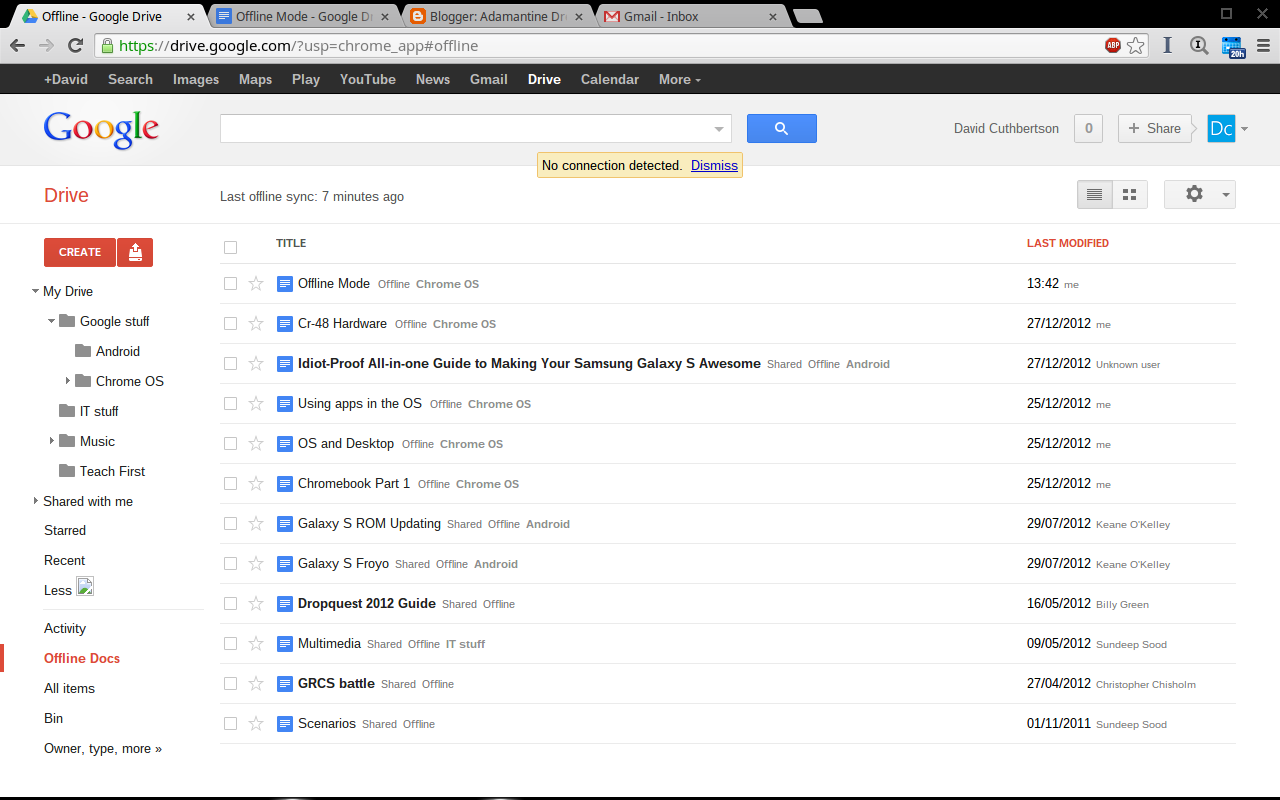
Although Google Drive has a hierarchy of files and folders when online, just like any other computer while, offline, there is no hierarchy, simply a long list of different files, rather than in their correct folders as they would appear online.

While I can understand that this is a simpler system, it becomes a little unwieldy as you have more and more documents. It is especially strang as the hierarchy is shown on the left of the webpage, as you can see below. As a Dropbox user, I am used to having every single file saved for offline use. This is a trade-off I would prefer not to make, but with only a 16GB SSD compared to other machines’ huge HDDs, I can understand why this decision has been made.


My Drive Offline Docs, in a list by "last modified"

Few apps with a decent offline mode

This is a small problem that require a certain amount of understanding. Windows, OS X and Linux programs generally all work online or offline. except perhaps internet browsers. Yet since Chrome OS is based on the browser, the vast majority of apps expect to have an internet connection, unless they have specific settings. Of the apps I have installed on the computer, about half work offline, while the others don’t run at all. Although this is initially jarring, once you understand which apps have an offline mode, you will be able to get by.

My biggest annoyance is the gap in functionality between their online and offline modes. This can be seen most obviously in the Gmail offline app when it is compared to the Gmail app. The offline app is much more like a smartphone or tablet app, whereas the the standard Gmail app is far more fully-featured and is exactly what a user would expected from a desktop operating system. This is especially disappointing as it is one of Google’s tent-pole services, something a user would expect to use day to day.


Offline Gmail and its tablet-like appearance and reduced features


It seems like the Chrome OS developers could do a bit more work to improve the app’s offline usability, rather than just give an excuse that perpetuates the idea that “Chromebooks are only good online”.

The same can be said about the lack of an offline spell-check in Google Docs. I have been used to corrections or suggestions on whatever platform I am on, including iOS devices whether online or offline. Google does not provide the spell-check offline. 
Strangely enough, I have found the Blogger website actually has a better spell-check than Google Docs, very odd!I imagine this is to reduce bloat on the tiny SSD, but the option to save at least one language of data would be nice. It is not a deal-breaker for me, as I am usually just writing notes on the Chromebook anyway prior to a final read through on my iMac, or at least in my flat when I will have access to the internet, but it still something different to the norm, that I need to remember. It does also mean that I am now forced to reread what I have typed, and it has actually made me edit what I have written previously. Perhaps that increase in self-editing is a good thing?

Usage

Having said all of this, in my usage, the Chromebook still did everything I needed it to do, even if it did not do everything I perhaps would have wanted it to do, making it a very good travel companion.

It was ready to go in seconds, due to its quick boot time and would play the small amount of music I had saved for offline use, or I could listen to the music on my phone. It also played a couple of episodes of a TV series I had on an SD Card, absolutely fine. I was easily able to transcribe handwritten notes in Google Docs and didn’t really need anything fancy. The Cr-48 is still a little too large for an aircraft’s tray table, but until I get my dream machine - an 11” MacBook Air, that would be the case with any other laptop I have.

Monday, 24 December 2012

The OS and the Desktop

Here is my second post in a series about using ChromeOS and the Cr-48 Chromebook and to see whether they can replace a Windows or OS X laptop.

Chrome OS


Chrome OS is Google's attempt at a fast, lightweight, desktop operating system based around their own Chrome browser. It was started by an engineer in Google who wanted to created an OS that was run entirely from the computer’s RAM. It is meant to boot fast, turn off quickly, and require less processing and battery power than a traditional desktop operating system. It allows for "apps" and "extensions" to be installed into the browser and to be used just like an app on any other operating system. However these applications are "web apps" which often appear to the user to be links to a website which provides the app's content or service.

An example of content would be the Google Drive, similar to the Dropbox and Skydrive services, it allows access to the user’s files and folders from Google’s own cloud storage from anywhere with internet access. To the Chrome OS user, it looks just like logging onto the website and going through its online file hierarchy just as it would a user logging in on their own browser, however it also allows for both ‘local’ access - where the files are downloaded to the device and ‘offline’ access, where files are saved locally and can be edited without an internet connection. Changes can then be synced back to the cloud the next time the Chromebook is connected to the internet. As someone who has used Dropbox for years, and use it as “My Documents” folder, this is something I have been doing for a long time, but it will be interesting to try to integrate this new OS into my computing work flow, after using Windows 7 and the different betas of Windows 8 on a laptop for the past year or so.


Desktop


From first impressions the OS is very pretty. Google has included a good number of beautiful wallpapers and of course you can use your own. I've stuck with one of the picturesque landscape ones, but your mileage may vary! For the version I am using, the desktop appears to be a pared down version of the Windows desktop, with the dock/ tool bar at the bottom and a small list of settings in the bottom corner including a clock, WIFI connection indicator and battery capacity indicator.


Also, just like Windows, you can get rid of the dock if you don’t want it to display unless you need it or to gain extra screen real estate for everything else. You just move your cursor down to the bottom of the screen and it will pop up.


Just like other OS with a window interface Chrome OS has the icons, this time with the icons on the right-hand side like Windows. It has the typical close window cross as well as a square icon which when you hover over it gives you several different options, to maximise, minimise and pin to the left and right. These icons can be clicked or the cursor dragged and clicked to them. I like these options being available, and it does give a good differentiation between Chrome OS, Windows and OS X.


Apps are accessible from a small icon that when pressed reveals a popup that shows a list of apps that are installed on the Chromebook. Each can then be right-clicked to give options as to how it opens and dragged to the dock just like on a Mac or PC.


Sadly these app icons appear in the order they have been installed on the device. There is no way to drag them to the pages you want like the functionality of OS X’s Launchpad app or the folders on iOS and Android. This disappoints me slightly, but I have just put my most-used apps in the dock and access them from there. I can also use the keyboard and press the “Search” button which has replaced the Caps lock key and type in the name of the app I want to open. The desktop works well enough for me, and other than that minor problem with the apps drawer, I like it.

Friday, 21 December 2012

Google’s Chromebook: A perfect secondary computer?

Cr-48 image from Engadget (http://www.engadget.com/2010/12/07/google-unveils-cr-48-the-first-chrome-os-laptop/)

I bought a Cr-48 on eBay a couple weeks ago. For anyone who doesn't know what that is, and I imagine that is most of you, it is a particular model of laptop running Google's Chrome OS, something Google calls a "Chromebook". There has been an increase in the number of these devices in the past few months with the third generation machines hitting shops this side of Christmas and adverts everywhere for them. I believe they can actually serve some people as decent primary computers and most people as a very good secondary computer. However they definitely can't be expected to perform all of the functions of a fully-fledged operating system like OS X, Windows or a decent distribution of Linux. They are especially attractive in the US with their $199 price tag. They start a bit more expensive over here at £199. I was lucky enough to pick up this Cr-48 for £120 posted in good condition. It isn't as powerful as these new Chromebooks, by Samsung or Acer, but it is already turning into a great little computer for the money.

This will be a series of short posts on the device, its OS and seeing how it fairs as a secondary device to my main iMac computer. I’ll give a small background on each area of the laptop: its OS, specs and how it handles the different things I expect my laptop to be able to perform like word processing, video watching, and general usage over the days and weeks. I'll be able to compare it to the different computers I've used including my MacBook, M11X and iMac, although they are obviously vastly different machines.

Stay tuned for more updates!